

Sterling Bank Online - Personal
What is Sterling Bank Online - Personal?
Sterling Bank Online - Personal is an internet-based banking facility that gives you access to your enrolled Sterling Bank of Asia checking or savings accounts and/or prepaid or debit cards. It allows you to perform various banking transactions using your preferred internet-enabled device, such as a desktop computer, laptop, tablet, or smartphone.
What banking transactions can I do through Sterling Bank Online - Personal?
You can do the following banking transactions with your enrolled account/s or card/s in Sterling Bank Online – Personal:
- Account/Card Monitoring:
- Monitor your account and/or card balance/s
- View transaction history in the last six (6) months
- Fund Transfers and Bills Payment
- Transfer funds to any Sterling Bank of Asia checking or savings accounts or ShopNPay prepaid/debit cards1
- Transfer funds from Sterling Bank of Asia checking or savings accounts or ShopNPay prepaid cards to other local banks via InstaPay and PESONet
- Transfer funds from Sterling Bank of Asia checking or savings accounts or ShopNPay prepaid cards to merchants or sellers via QR Person-to-Merchant (QR P2M)
- Pay billers via InstaPay QR Person-to-Biller (QR P2B) from Sterling Bank of Asia checking or savings accounts or ShopNPay prepaid cards
- Pay bills anytime, anywhere
- Pay your active and enrolled loan account2
- New account opening3
- Open another savings account2
- Place time deposit account/s2
- Check Services
- Reorder Checkbook
- Request for Manager’s Check
- Inquire about the status of your deposited and issued check/s
- Issue a stop payment order to your issued check/s
- Other Services
- Apply for an Auto Loan, Personal Loan, and/or Home Loan
- Schedule bills payment and/or fund transfer transactions
- Find and locate any Sterling Bank of Asia branch
1for Php-denominated cards only
2only for checking/savings account as source account
3not applicable for Solo Basic Savings and Solo Basic Savings - Online Accounts
How secure is Sterling Bank Online - Personal?
- Sterling Bank Online – Personal is hosted on a secure server, and data is encrypted during transmission.
- You need a valid username and password to access the system.
- You need a One-Time Password (OTP) to log in via the web and process your banking transaction requests.
What is a One-Time Password (OTP)?
A One-Time Password (OTP), also known as one-time PIN, is a unique code sent to your registered mobile number to authorize financial and non-financial transactions on Sterling Bank Online - Personal.
Where can I access Sterling Bank Online - Personal?
The facility may be accessed through:
- Sterling Bank website – visit https://sterlingbankonline-personal.com
- Sterling Bank Online – Personal mobile app – download from the Apple Store for iOS devices or from Google Play Store for Android* devices to access your accounts anytime, anywhere.
To access your account or card, you must first enroll your active checking or savings account or prepaid or debit card. Visit https://sterlingbankonline-personal.com or download Sterling Bank Online – Personal from Google Play store or Apple Store to register.
*To continue enjoying a safe and secure mobile banking app experience, your device should be running Android version 8 or higher or iOS version 15.5 or higher.
How do I enroll in Sterling Bank Online - Personal?
Enrolling your account in Sterling Bank Online – Personal is as easy as 1-2-3! Here’s how:
- Go to https://sterlingbankonline-personal.com/ or download the Sterling Bank Online – Personal Mobile Banking app in Google Play or Apple Store. Select ‘New Enrollment’, fill out the online form, and confirm the details.
- Enter the One-Time Password (OTP) that will be sent to the registered mobile number.
- Return to the login page, enter your username & password, and click ‘Login’.
For further assistance, watch the enrollment tutorial video here.
What accounts or cards can I enroll in Sterling Bank Online - Personal?
i. Savings Account
- Solo Savings account
- Solo Basic Savings account
- NEO Savings account (account holder should be at least 18 years old or an ITF account)
- Bayani OFW Savings account
- US Dollar/CNY Savings account
ii. Checking Account
- Duo Checking account
iii. Joint “OR” accounts
- Accountholders should enroll the account separately and should have different usernames and passwords.
iv. Prepaid and Debit Cards
- ShopNPay Visa Prepaid & Debit Cards (Peso)
- ShopNPay Visa Prepaid & Debit Cards (Dollar)
What information do I need to provide upon enrollment in Sterling Bank Online - Personal?
You have the option to use either your checking or savings account or ATM card when enrolling. To enroll your account or card, please prepare the following information:
a. 12-digit account number or 16-digit card number
b. Username (minimum of six (6) alphanumeric characters)
c. Password
- minimum of eight (8) characters
- must include at least one (1) of each of the following: uppercase letter, lowercase letter, numeric character, and special character (!@#$%^&*()+=<>;)
Reminder: Choose a strong password that is unique and difficult to guess to enhance your account security.
d. Last Name, First Name, Middle Name*
e. Date of Birth
f. Email Address
Please ensure that the information you enter during online enrollment (a, d-f) matches the data provided to your branch of account. If you need to update your information, please call your branch of account or click here to update your bank records with us.
*If this information is included in your bank record with Sterling Bank of Asia.
I have already enrolled in Sterling Bank Online – Personal but have not logged in for a long time/since enrollment. What should I do?
Your Sterling Bank Online – Personal account will be suspended or locked if you do not log in for 90 days from your enrollment date/last login date. To reactivate your account, kindly call your branch of account or our 24/7 Customer Service Helplines at +632 8721 6000 or +632 8672 6300.
You may still access your account if your enrollment was done less than 90 days ago. Simply log in via internet banking (https://sterlingbankonline-personal.com/) or the Sterling Bank Mobile Banking app. You may download the mobile app from the Apple Store or Google Play using your smartphone or tablet.
I have already enrolled in Sterling Bank Online - Personal but have forgotten my password. Can I still log in to my account?
From the Sterling Bank Online - Personal login page, kindly select “Forgot your Password?” to reset your password and nominate a new one. Once you have completed the password reset steps, you can log in to your account again using your username and new password.
If the account or card used in the initial enrollment of Sterling Bank Online - Personal is closed or no longer active, you may use your other accounts or cards enrolled in the facility to complete your Forgot Password request.
Reminder: Choose a strong password that is unique and difficult to guess to enhance your account security.
Can I enroll additional accounts or cards in Sterling Bank Online – Personal?
Yes. Existing Sterling Bank Online - Personal users may add or link their other active checking or savings account* or active and unexpired prepaid/debit cards. This may be done through the Account/Card Enrollment function in the Settings menu.
To add or link other accounts or cards, follow these steps:
- Log in to your Sterling Bank Online – Personal account.
- Click Settings > Account/Card Enrollment > Account/Card Enrollment.
- Select the Account/Card Type you want to enroll.
- Input all the required information and press Continue.
- Request & enter the 6-digit OTP that will be sent to your registered mobile number. Click Confirm to complete the account or card enrollment.
Did you know? Your Time Deposit and active Loan accounts may also be added or linked through the Account/Card Enrollment menu.
*Solo Basic Savings and Solo Basic Savings - Online Accounts can enroll one savings account/debit card only.
Is fund transfer to other Sterling Bank of Asia accounts free of charge?
Yes. Fund transfer from your Sterling Bank account/card to other Sterling Bank account/card is free.
Is fund transfer to other local banks free of charge?
Fund transfers from your checking/savings account or ShopNPay prepaid cards to other local banks through Sterling Bank Online - Personal has a minimal fee of Php15.00 per transaction for both InstaPay and PESONet. The fee will be charged to the account or card you used for the fund transfer. For unsuccessful outward PESONet and InstaPay fund transfers, the corresponding service fee will be returned to the sender as applicable.
Will the recipient immediately receive the money I sent through Sterling Bank Online - Personal?
Fund transfers to other Sterling Bank checking/savings accounts or prepaid/debit cards are received in real-time.
For fund transfers to other local banks, the money will be received in real-time if you select InstaPay. If you select PESONet, there is a cut-off time* every banking day:
- PESONet transfer done before 10:00 am will be processed on or before 12:00 pm on the same banking day
- PESONet transfer done before 1:00 pm will be processed on or before 3:00 pm on the same banking day
- PESONet transfer done before 4:00 pm will be processed on or before 11:00 pm on the same banking day
Fund transfers done after 4:00 pm (Philippine time) on weekdays, weekends, and holidays will be included on the 10:00 am cut-off the next banking day.
*The actual crediting time to the receiver’s account is subject to the receiving bank’s processing schedule.
Is there a maximum limit for the amount of fund transfers?
The limit will depend on the Daily and/or 3rd Party transaction limit you have set in the Manage Transaction Limit (available in the Settings menu). The maximum Daily transaction limit is Php500,000 per day, while the 3rd Party transaction limit is Php100,00 per day and is subject to your account/card’s available balance.
- For fund transfers from Sterling Bank of Asia checking or savings accounts via InstaPay or QR Pay1 , there is a maximum amount of Php50,000 per transaction. For fund transfers from ShopNPay prepaid cards via InstaPay or QR Pay1, the default limit of the prepaid card amounting to Php40,000 will be followed as the maximum amount per transaction, per day. Click here for QR Pay FAQs.
- For PESONet fund transfers from Sterling Bank of Asia checking or savings accounts, the maximum transaction limit depends on the 3rd Party transaction limit set in your Sterling Bank Online – Personal account (up to a maximum of Php100,000 per day) or your account’s available balance. For PESONet fund transfers from ShopNPay prepaid cards, the default limit of the prepaid card amounting to Php40,000 will be followed as the maximum amount per transaction, per day. Please note that the 3rd Party transaction limit is Php100,000 per day.
- For fund transfers to PHP prepaid cards, it will follow the monthly limit of Php100,000 per card2. If the card exceeds this limit, it can no longer receive funds. Click here for more information on card limits.
Note: Fund transfers from prepaid cards to your own or 3rd party account/card will follow the default limit of the prepaid card, which is Php40,000 as the maximum amount per transaction per day. All transactions from your account/card to your own or 3rd party account/card will form part of the Daily and/or 3rd party limit checking.
1 QR P2Micro limit per transaction will follow BancNet’s limit of Php500 per transaction.
2Peso - Php100,000.00/card (maximum of Php100,000.00 per client/month).
What is the “Manage Favorites” feature in Sterling Bank Online - Personal?
Manage Favorites is a feature that allows you to save the account or card details of a 3rd Party Sterling Bank checking/savings account or card* you frequently send money to or payee details of a biller you often do Bills Payment transactions with.
You may also add as a favorite the details of other local bank accounts (for fund transfers to other local banks via InstaPay or PESONet).
*PHP-denominated accounts/cards only.
How do I add a “Favorite” account or card?
Once you have successfully logged in to your account via Internet or Mobile Banking, you can add a favorite account, card, or biller via the Settings menu.
From the account landing page, go to the Settings menu, then select Manage Favorites. Choose whether you want to add a Sterling Bank 3rd Party SBA account or Prepaid/Debit card*, Other Local Bank Account, or a Bills Payment account. Provide all the requested information and input the OTP to confirm adding your Favorite account, card, or biller.
Another option to add a favorite account, card, or biller is after a successful fund transfer or bills payment transaction. At the successful transaction confirmation screen, click the tick box Add this account/card/biller to your favorites, and complete all the required information to add the account/card/biller details as your “Favorite”.
*PHP-denominated accounts/cards only.
A. How to add a Favorite account, card, or biller through the Settings menu?
- Log in to your Sterling Bank Online – Personal account, click Settings* > Manage Favorites.

*For the mobile app, click the side menu bar (☰).
- Click Add New Favorite Account/Card.

- Choose the Transaction Type you want to enroll. Complete the other required information and click Continue to proceed.

- Review the information provided and request for an OTP.

- Enter the 6-digit OTP and click Confirm to proceed. A successful confirmation screen will appear once you have successfully enrolled an account, card, or biller.


B. How to add a Favorite account, card, or biller after a successful transaction?
- Check the tick box (Add this account/card/biller to your favorites).

- A pop-up screen will appear and display your latest transaction’s account or card details. Assign a Favorite Name and click Confirm to proceed.

- A successful confirmation screen will appear once you have successfully enrolled an account, card, or biller.

What is the Card Management feature in Sterling Bank Online - Personal?
The Card Management feature is a new security feature of Sterling Bank Online - Personal that allows you to take control of your enrolled prepaid or debit card/s. You can manage your card’s E-commerce access, statuses, and withdrawal and/or purchase limits. This feature may be accessed via the Card Management tab in the Settings menu.
What transactions can I do in the Card Management feature?
There are three (3) main functions you can perform under the Card Management feature:

- E-commerce Access – allows you to enable or disable online purchases for your enrolled card.
- Manage Card Status – allows you to lock or unlock your enrolled card. The locked card will be disabled and cannot be used for any transaction.
Remember, you can lock or unlock your card only if it has not been blocked or temporarily suspended by Sterling Bank of Asia. - Manage Card Limits – allows you to set ATM withdrawal and purchase (POS & e-commerce, and Mail Order/Telephone Order (MOTO) transactions) limits for your enrolled card.
Can I enroll a loan account that is past due?
A Loan account already past due cannot be enrolled in Sterling Bank Online - Personal.
What details can I view when I enroll a loan account in Sterling Bank Online - Personal?
The following loan account details may be viewed/accessed:
- Loan Amount
- Loan Term
- Interest Rate
- Total Outstanding Loan
- Total Loan Amount Paid
- Amortization Amount
- Last Payment Amount & Date
- Next Amortization Amount & Due Date
What will happen if my enrolled loan account turns past due?
Enrolled loan accounts with past due status will be disabled and cannot be viewed or accessed. Any transaction or activity is not allowed via Sterling Bank Online – Personal. Please contact our Collections Department and visit your branch of account to settle your past-due loan account/s so that you can continue to access it via the facility.
Will I receive alerts or notifications when I perform transactions via Sterling Bank Online - Personal?
To ensure your account is safe and secure, Sterling Bank Online – Personal has an Alerts feature that sends you messages via email, SMS, or both when you do financial transactions. Kindly ensure that the email and SMS alerts are enabled under the Settings - Manage Alerts feature of your Sterling Bank Online - Personal. Ensure also that your email address and mobile number are updated.
Once enabled, you will receive notification/s via SMS for debit transactions amounting to Php4,000 & above*.
For transactions performed via Sterling Bank Online – Personal (any amount), you will receive a transaction email notification to your registered email address.
For transactions (any amount) with the prepaid card as the source, you will receive SMS and email notifications to your registered mobile number and email address.
*Only for checking/savings accounts as source accounts. For joint accounts, primary account holder will receive the notifications/alerts.
What should I do if I want to update my personal information on Sterling Bank Online – Personal?
Can I unenroll an account, debit, or prepaid card in Sterling Bank Online – Personal?
You may unenroll your registered checking/savings account, prepaid, or debit card through the Account/Card Enrollment function found in the Settings menu. Select the Account/Card Unenrollment submenu to unenroll your existing checking/savings account, prepaid, or debit card.

Where can I call if I have further inquiries about the Sterling Bank Online – Personal?
Kindly contact your branch of account should you have concerns or questions about Sterling Bank Online – Personal.
You may also contact our 24/7 Customer Service Helplines at +632 8721 6000 or +632 8672 6300. You can also send an email to customer.service@sterlingbankasia.com.
Sterling Bank Online - Personal New Features
A. Prepaid and Debit Card Enrollment
Can I enroll my Prepaid and Debit cards in Sterling Bank Online – Personal?
Active and unexpired Prepaid and Debit cards may now be enrolled via Sterling Bank Internet Banking (via web browser) or Mobile Banking (via mobile app). Debit cards must be linked to an active checking or savings account to be eligible for Sterling Bank Online – Personal enrollment.
For first-time* enrollment, log on to https://sterlingbankonline-personal.com/ or download Sterling Bank Online – Personal from the Apple Store or Google Play Store for enrollment via mobile app.
If you already have an existing Sterling Bank Online – Personal account, you can add/link your other active prepaid or debit card/s via the Account/Card Enrollment function in the Settings menu.
*No existing Sterling Bank Online – Personal account yet.
What Prepaid and Debit card/s can I enroll in Sterling Bank Online – Personal?
All ShopNPay Prepaid and Debit cards linked to a regular checking or savings account can be enrolled in Sterling Bank Online – Personal. For Neo Savings Account, the account holder should be at least 18 years old or is an in-trust-for (ITF) account.
The primary checking or savings account number will be displayed on the account landing page for enrollment using a debit card. The 16-digit card number will be displayed on the account landing page for enrollment using a prepaid card.
How do I enroll my Prepaid or Debit card?
For first-time enrollment*, you can enroll through a web browser (https://sterlingbankonline-personal.com/) or the Sterling Bank Mobile Banking app.
*No existing Sterling Bank Online – Personal account yet.
How to enroll my Prepaid or Debit card?
- At the login page, click Not yet enrolled? Enroll now!

- Read and accept the Electronic Banking Agreement.

- The Online Banking Enrollment page will appear. Select the Account Type you want to enroll (account or card number). Fill out the required information and click Confirm to proceed.

- Request and enter the 6-digit One-time password (OTP). Press Submit to complete the enrollment.

- A confirmation page will appear for a successful enrollment.

If you already have an existing Sterling Bank Online – Personal account, you can add or link your other active and unexpired prepaid or debit card/s via the Account/Card Enrollment function in the Settings menu.
- Log in to your Sterling Bank Online – Personal account.

- Click Settings > Account/Card Enrollment > Account/Card Enrollment.

- Select the Account/Card Type you want to enroll.

- Input the account/card number and press Confirm.

- Request & enter the 6-digit OTP that will be sent to your registered mobile number. Click Confirm to complete the card enrollment.


Why is my enrollment using a Prepaid/Debit card unsuccessful?
Ensure that (1) the information you provided on the Online Enrollment page is the same as the records you submitted to the bank; and (2) that the card you are enrolling is active and not expired.
If you are still experiencing issues, check if you have previously enrolled in Sterling Bank Online - Personal using a different account or card. If you already have an existing account, you may log in using your username and password and simply link your Prepaid/Debit card to your existing account via the Account Enrollment in the Settings menu (For the steps, see the previous FAQ How to I enroll my Prepaid or Debit card?).
For inquiries or assistance, contact your branch of account or our 24/7 Customer Service Helplines at +632 8721 6000 or +632 8672 6300 or email customer.service@sterlingbankasia.com.
What transactions can I do with my enrolled Prepaid card or Debit card?
- Send or receive funds to/from your own Sterling Bank of Asia checking/savings account or Prepaid/Debit card1.
- Send or receive funds to/from other Sterling Bank of Asia checking/savings accounts or Prepaid/Debit cards1.
- Send or receive funds to/from other local banks using Sterling Bank of Asia prepaid card2.
- Monitor your account/card balances.
- View transaction history in the last six (6) months3.
- Pay bills anytime, anywhere.
- Pay your active and enrolled loan account.
- Enroll favorite Prepaid/Debit cards1.
- Enable or disable e-commerce access of enrolled cards.
- Manage card statuses and card limits.
- Generate a QR code for your prepaid card/s1.
Remember:
- Expired and/or inactive enrolled cards cannot be used for any transaction.
- Fund transfers sent to SBA debit cards will be credited to the card’s primary checking/savings account linked to the debit card.
1Php-denominated cards only.
2Fund transfer to other local banks fro Sterling Bank of Asia prepaid card may be done via InstaPay, QR Pay or PESONet. Fund transfer from other local banks to Sterling Bank of Asia prepaid cards is available via InstaPay or QR Pay.
3Transaction history of the debit card will reflect the existing checking/savings account transaction history.
What will happen to my enrolled prepaid or debit card when its status is no longer ‘active’ and/or is expired?
Enrolled prepaid cards that are no longer active (i.e., temporarily suspended) will be disabled, while expired cards will be automatically unenrolled from Sterling Bank Online – Personal2. The cards cannot be used for any transaction.
If the debit card is inactive but the checking/savings account linked to it is active, the account will not be deactivated on the landing page. The user can still perform transactions via the active checking/savings account as the source account. However, if the account linked to an inactive debit card is closed, both the debit card & account will be removed & unenrolled from the facility and cannot be used for any transaction.
Prepaid or debit cards1 reported as lost or stolen or have changed their status to permanently blocked, inactive, or expired will be unenrolled2 from Sterling Bank Online – Personal, and the card can no longer be accessed via the facility and cannot be re-enrolled as well.
1 The primary checking/savings account linked to it will also be removed from the account landing page.
2 The card will be removed if there are other enrolled accounts/cards. If only one card remains, the card will be disabled only on the landing page and will not be removed.
What will happen to my enrolled debit card if there are changes to the primary checking/savings account linked to it?
If the primary account linked to a debit card changes, the debit card and the original account linked to it will be unenrolled from Sterling Bank Online - Personal. Upon your first login to your Sterling Bank Online account, you will be notified when this happens through a message prompt.
What will happen if my debit card no longer has an enrolled or linked checking/savings account?
Your debit card will be removed/unenrolled from Sterling Bank Online - Personal if it no longer has an enrolled and linked checking/savings account. It will also be removed/ unenrolled if the account linked to it has been closed.
Why is my fund transfer to a prepaid card unsuccessful?
The recipient’s prepaid card may have reached its allowed monthly aggregate limit for reloading/fund transfer, or the source prepaid card has reached the maximum daily transaction limit. Please check with your recipient or call your branch of account or our 24/7 Customer Service Helplines for inquiries/concerns.
I have already enrolled in Sterling Bank Online - Personal but have forgotten my password. Can I still access my account or card?
From the Sterling Bank Online - Personal login page, kindly select “Forgot your Password?” to reset your password and nominate a new one. Once you have completed the password reset steps, you can log in to your Sterling Bank Online - Personal account again to access your account/card.
If the account or card used in the initial enrollment of Sterling Bank Online - Personal is closed or no longer active, you may use your other accounts or cards enrolled in the facility to complete your Forgot Password request.
Reminder: Choose a strong password that is unique and difficult to guess to enhance your account security.
B. Card Management and Card Limits
What is the Card Management feature in Sterling Bank – Online Personal?
The Card Management feature is another security feature of Sterling Bank Online - Personal that allows you to take control of your enrolled card. You can manage your card’s E-commerce access, status, and limits. This feature may be accessed via the Settings menu.
What transactions can I do in the Card Management feature?
There are three (3) main functions you can perform under the Card Management feature:
- E-commerce Access – allows you to enable or disable online purchases for your enrolled prepaid or debit card. When the card is enabled, it can be used for e-commerce or online transactions. When the card is disabled (grayed out on the landing page), it cannot be used for e-commerce or online transactions.
Remember, you can enable or disable your card through Sterling Bank Online – Personal only if it has not been permanently blocked or temporarily suspended by Sterling Bank of Asia. - Manage Card Status – allows you to lock or unlock your enrolled card. Locked cards will be disabled and cannot be used for any transaction in and outside Sterling Bank Online - Personal, such as ATM-related transactions or card-present and card-not-present purchases.
However, if your locked debit card is linked to an active checking/savings account, you can perform transactions in the facility using your account. If you wish to use your card again, unlock your card. - Manage Card Limits – allows you to set ATM cash withdrawal and purchase (POS, E-commerce, and Mail Order/Telephone Order (MOTO) transactions) limits for your enrolled card.
Click here for the step-by-step guide.
What are the maximum Withdrawal and Purchase Limits I can set?
For PHP-denominated cards, withdrawal and purchase limits may be set up to Php100,000 per day, per card.
For USD-denominated cards, withdrawal and purchase limits may be set up to USD2,000 per day, per card.
Remember: The card limits you have set in the Manage Card Limits menu will also be used to check the transaction limits using other channels (i.e., ATM withdrawal, POS, and/or e-commerce transactions). Card transactions performed using Sterling Bank Online - Personal will form part of the Daily and/or 3rd Party transaction limits of the facility.
Can I reload my enrolled prepaid card through Sterling Bank Online - Personal?
You can reload your prepaid card through a fund transfer transaction from your enrolled checking/savings account or card. The source and receiving accounts should be of the same currency. Fund transfers to prepaid cards will follow the monthly aggregate limit of Php100,000 per card*. If the card has already exceeded the Php100,000 limit, it will no longer be allowed to receive funds. The user can no longer receive fund transfers from another account or card.
*Monthly aggregate limit: Peso - Php100,000.00/card (maximum of Php100,000.00 per client/month)
Is there a limit on how much I can send to a prepaid card?
Fund transfer transactions to a prepaid card are considered reload transactions and will follow the Php100,000 monthly reloading limit allowed for a prepaid card.
Where can I call if I have further inquiries about the Sterling Bank Online – Personal?
Kindly contact your branch of account should you have concerns or questions about Sterling Bank Online – Personal. You may also contact our 24/7 Customer Service Helplines at +632 8721 6000 or +632 8672 6300. You can also send an email to customer.service@sterlingbankasia.com.
Device Linking
What is Device Linking?
Device Linking, also called Device Binding, is an additional security feature of Sterling Bank Online - Personal that allows the users to link their trusted mobile device/s to their Sterling Bank Online account upon first log in to their Mobile Banking App.
Why do I need to link my Sterling Bank Mobile Banking App to my device?
Through this new security feature, you will have peace of mind knowing that access to Sterling Bank Mobile Banking App will only be through your trusted device/s.
How do I link my device/s to Sterling Bank Mobile Banking App?
To link your Sterling Bank Mobile Banking App to the device/s you trust, you need to log in to your Sterling Bank Online account through the mobile device/s you want to link.
Upon first login, a screen asking you to link the mobile device will be displayed on the screen. Choose Yes and enter the OTP that will be sent to your mobile number to complete the device linking. A confirmation screen will then be displayed once you have successfully linked the mobile device.
Click here to view the sample screens.
How many devices can I link to my Sterling Bank Mobile Banking App?
You can link only one device to your Sterling Bank Mobile Banking App at a time. This helps keep your account secure and reduces the risk of unauthorized access.
Can I access multiple Sterling Bank Online accounts once I have linked the device to my Sterling Bank Mobile Banking App?
Your mobile device is linked to one (1) login credential only. This means that another user cannot access Sterling Bank Online using your device that has already been linked to your account.
If I need to delete the mobile device/s that are already linked to my account, what should I do?
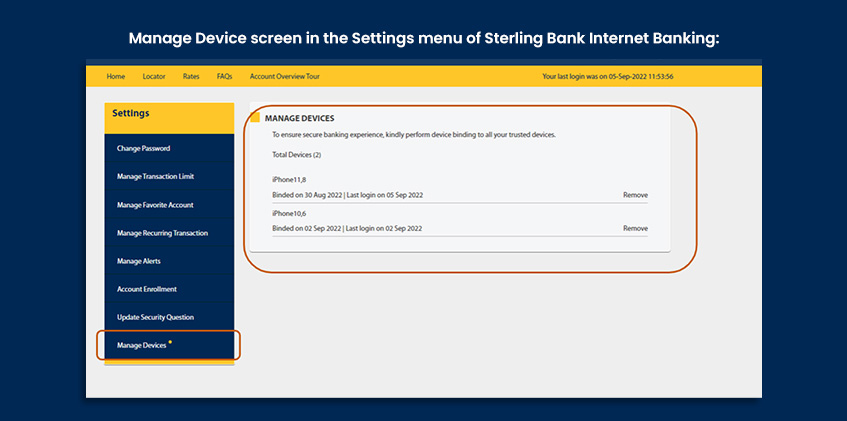
You can easily update the mobile device/s linked to your account by doing the following:
- Log in to your account via Sterling Bank Internet Banking (via web browser).
- Go to Settings.
- Select Manage Devices.
- Choose which mobile device you want to remove from the list.
Why can’t I download Sterling Bank Mobile Banking App & perform device linking in my Huawei mobile device?
Currently, Sterling Bank Mobile Banking App is available on devices with Google Playstore (Android) and App Store (IOS) only.
To access your Sterling Bank Online account, you may log in via a web browser and visit Sterling Bank Online - Personal.
If I uninstall my Sterling Bank Online Mobile Banking App, will I be asked to register my mobile device again once I re-install the app in the said mobile device?
For IOS, users will be asked to link the mobile device again upon first login after re-installing the Sterling Bank Online Mobile Banking App. For Android, users will no longer be asked to link the device again.
If I encounter difficulties in doing the device binding, what should I do?
For assistance or inquiries, you may contact your branch of account or call our 24/7 Customer Service Helplines at +632 8721 6000 and +632 8672 6300 or email us at customer.service@sterlingbankasia.com.

 Online Banking