Image




Transferring and receiving funds just got easier with Sterling Bank QR Pay!
To know more, click the following FAQs:
QR Pay | Person-to-Biller (P2B) | Person-to-Merchant (P2M)
1. Login to Sterling Bank Online Mobile app. Not enrolled? Click here.

2. Select QR Pay from the side menu bar (☰).

3. Click “Activate”.

4. Select the account or prepaid card you want to activate in QR Pay.

5. Enter your preferred name (max. of 10 characters) in the “QR Code Name” box, then click the “Request” button.

6. A box will appear to confirm your mobile number.
If correct, click the “Confirm” button.

7. Enter the OTP you received and press "Confirm".

8. You have successfully generated your QR code! Press “Save QR code” to save your code in your phone’s photo gallery, or click “Share Now” to send your code to your contact.

1. Login to Sterling Bank Online Mobile Banking app.
Not enrolled? Click here.
2. Select QR Pay from the side menu bar (☰).

3. Click “Activate new QR code”.

4. Select the account or prepaid card you want to activate in QR Pay.

5. Enter your preferred name (max. of 10 characters) in the “QR Code Name” box, then click the “Request” button.

6. A box will appear to confirm your mobile number. If correct, click the “Confirm” button.

7. Enter the OTP you received and press Confirm.

8. You have successfully generated your QR code! Press “Save QR code” to save your code in your phone’s photo gallery, or click “Share Now” to send your code to your contact.

1. Login to Sterling Bank Online Mobile Banking app.
Not enrolled? Click here.
2. Select QR Pay from the side menu bar (☰).

3. Select the account or prepaid card in which you want to receive funds.

4. Ensure that the “Receive” button is highlighted and click “Share Now” to save your QR code in your phone’s gallery or send your code to your contact.

1. Login to Sterling Bank Online Mobile Banking app.
Not enrolled? Click here.
2. Select QR Pay from the side menu bar (☰).

3. Select the account or prepaid card you want to use to send funds/payments.

4. Ensure that the “Pay” button is highlighted. You can either scan the QR code of your recipient or upload a photo of the QR code from your phone gallery.

5. Input the amount that you want to transfer.

6. Review the transaction details, and then click the “Request” button.

7. A box will appear to confirm your mobile number. If correct, click the “Confirm” button.

8. Enter the OTP you received and press confirm.

9. You have successfully transferred funds to your contact.

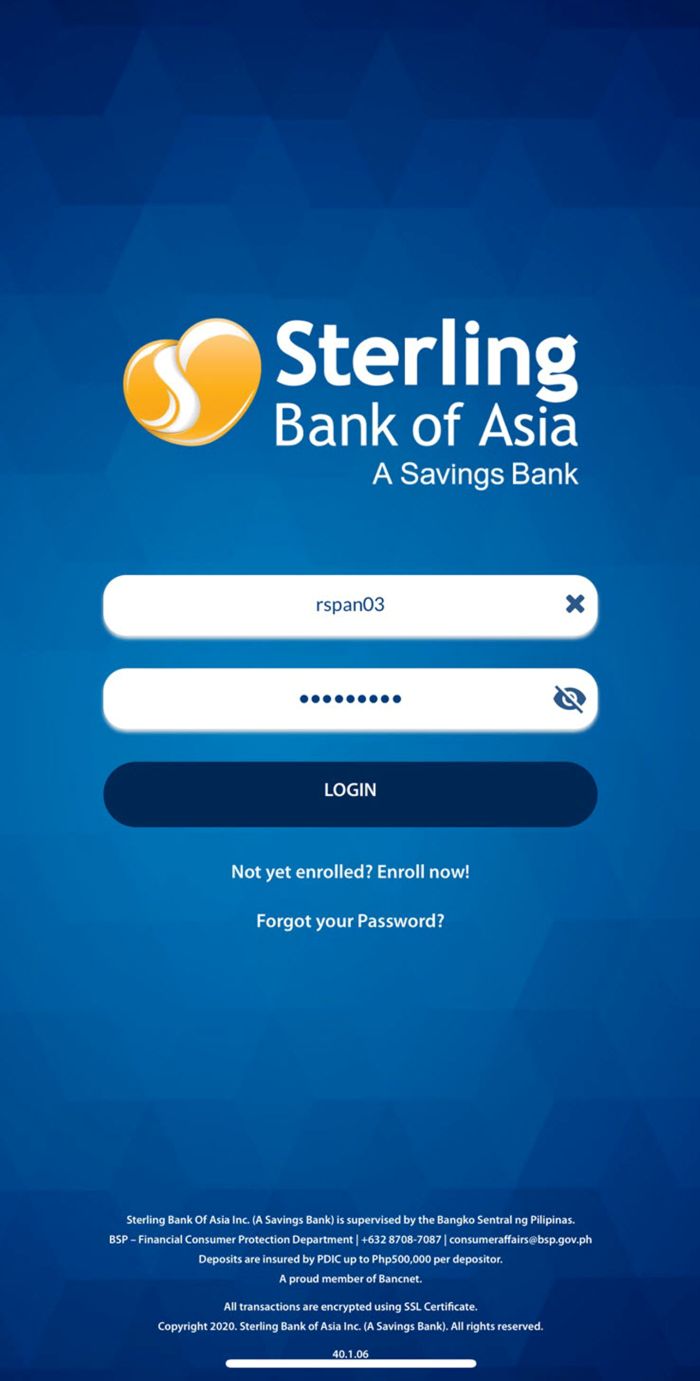
1. Login to your Sterling Bank Online Mobile Banking app. Not enrolled? Click here.
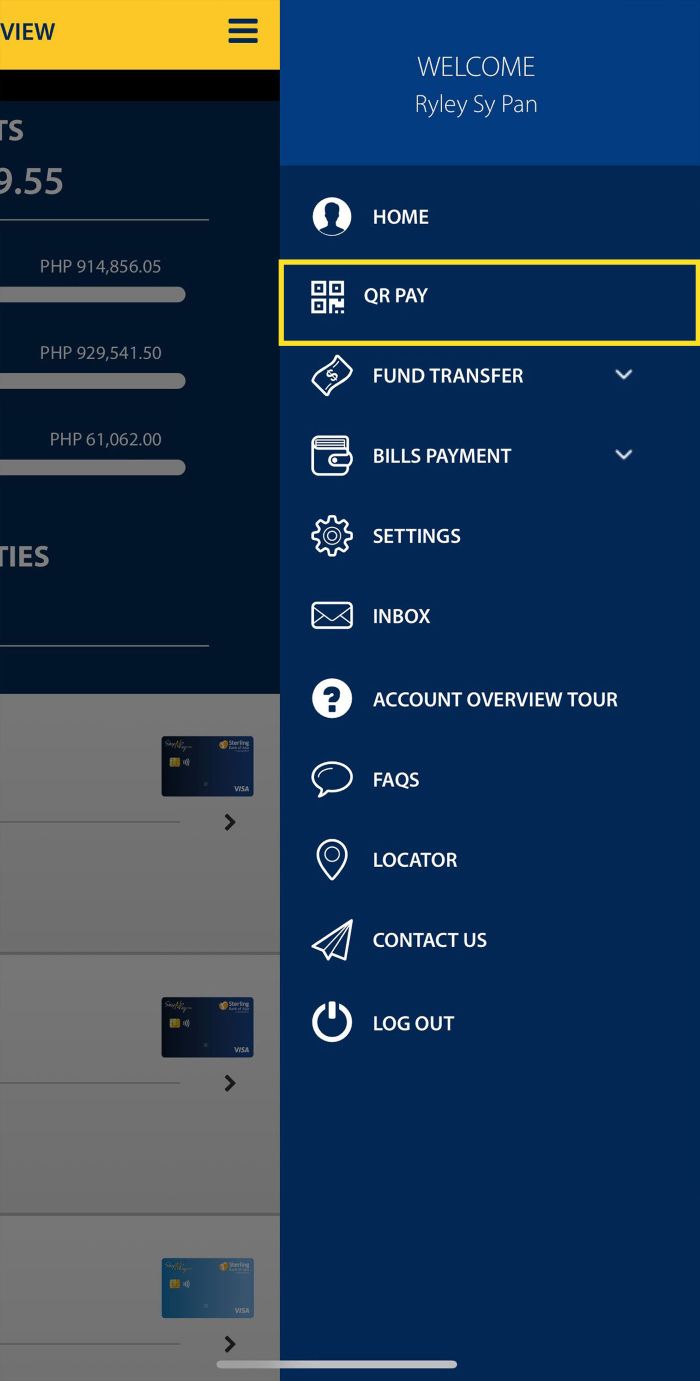
2. Select QR Pay from the side menu bar (☰).
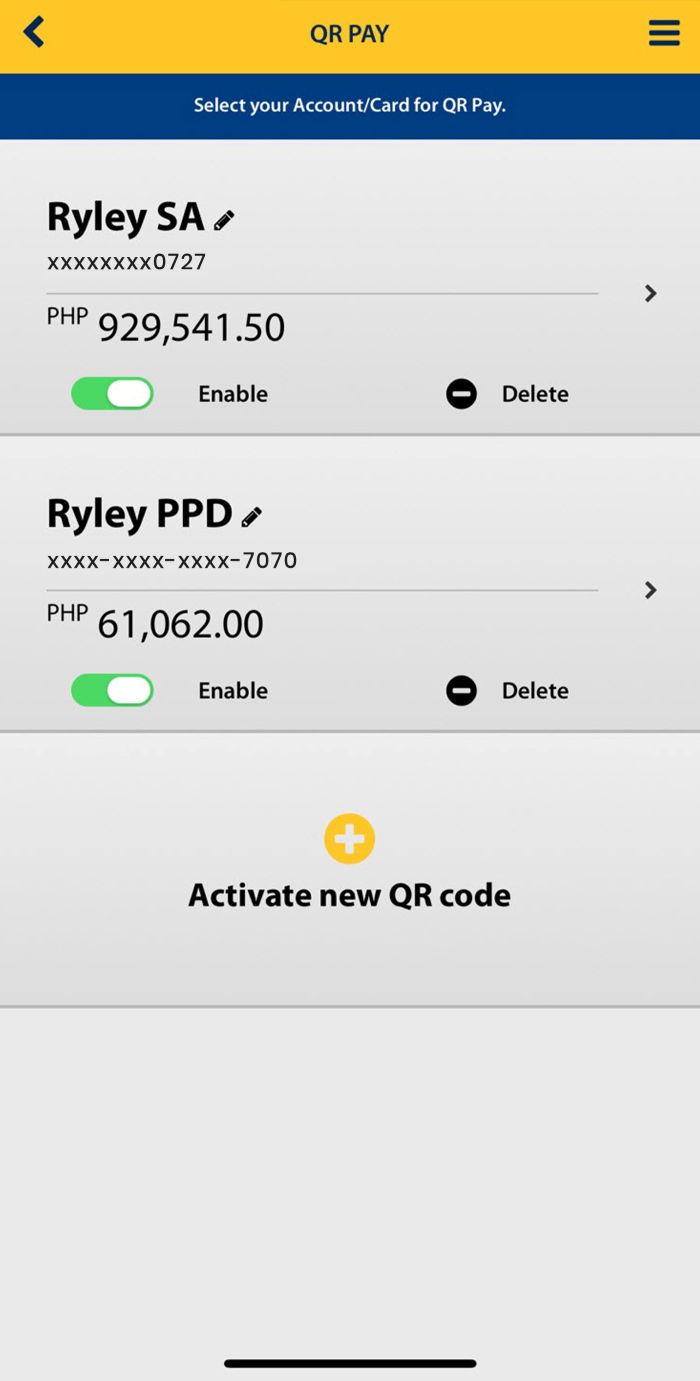
3. Select the account or prepaid card you want to use for the bills payment transaction.
4. Select the QR Pay Option - Pay, then scan the QR Ph code to make the bills payment. The QR code of their biller may also be uploaded from the device's photo gallery.
For complete list of QR Ph P2B Billers, click here.
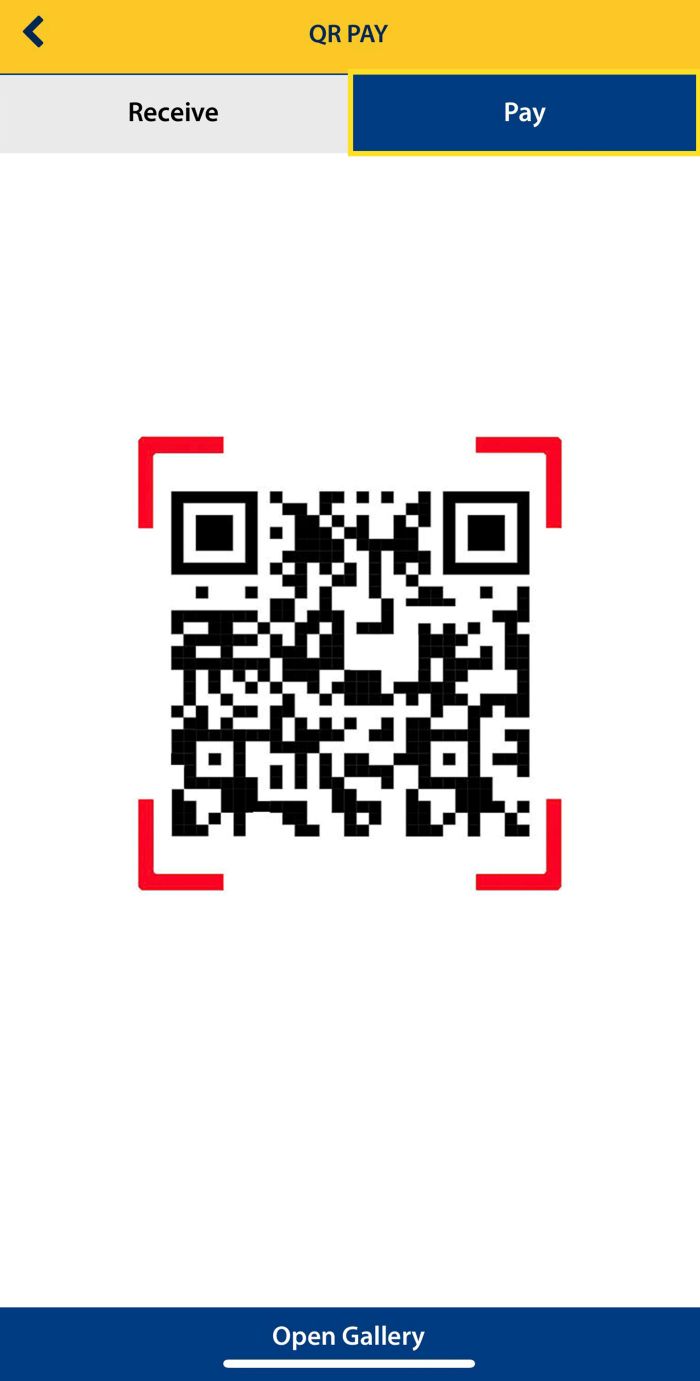
5. The amount to pay and the biller subscriber number will be auto-populated upon scanning/uploading the QR code. If the amount/biller subscriber number is not displayed, input the information manually. Press Confirm to proceed.
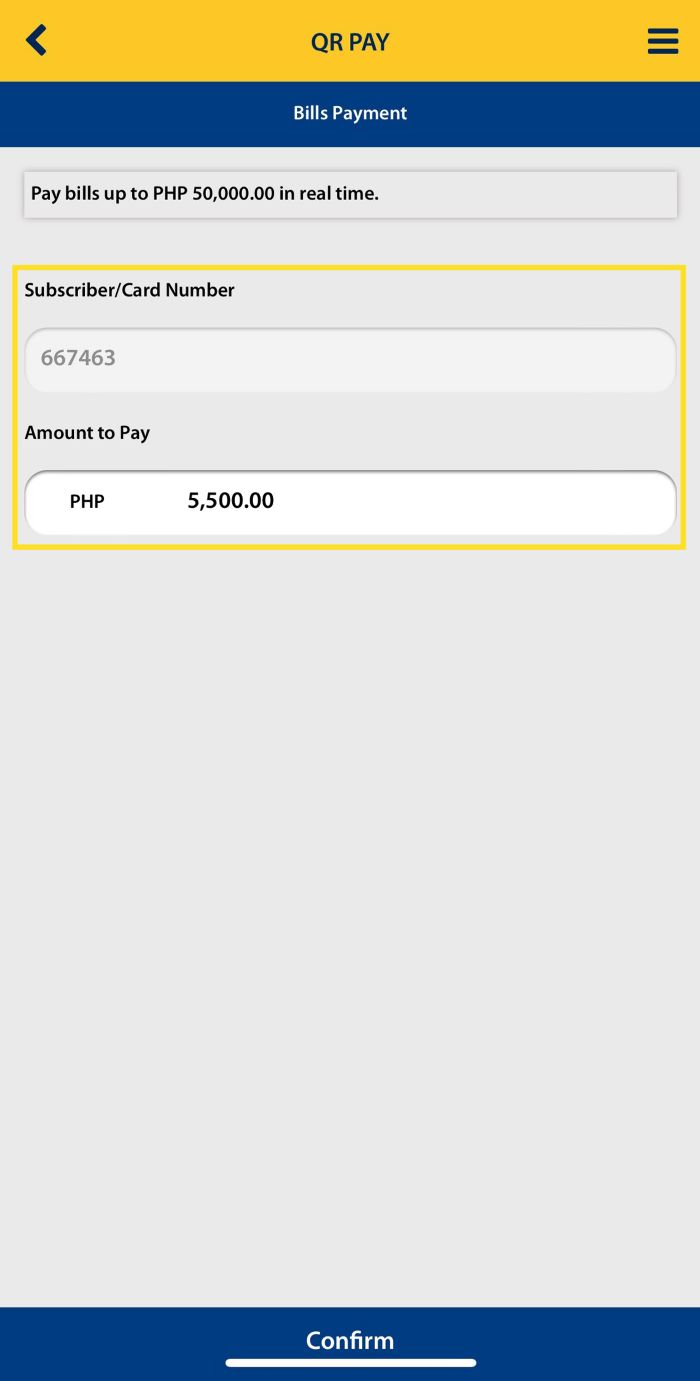
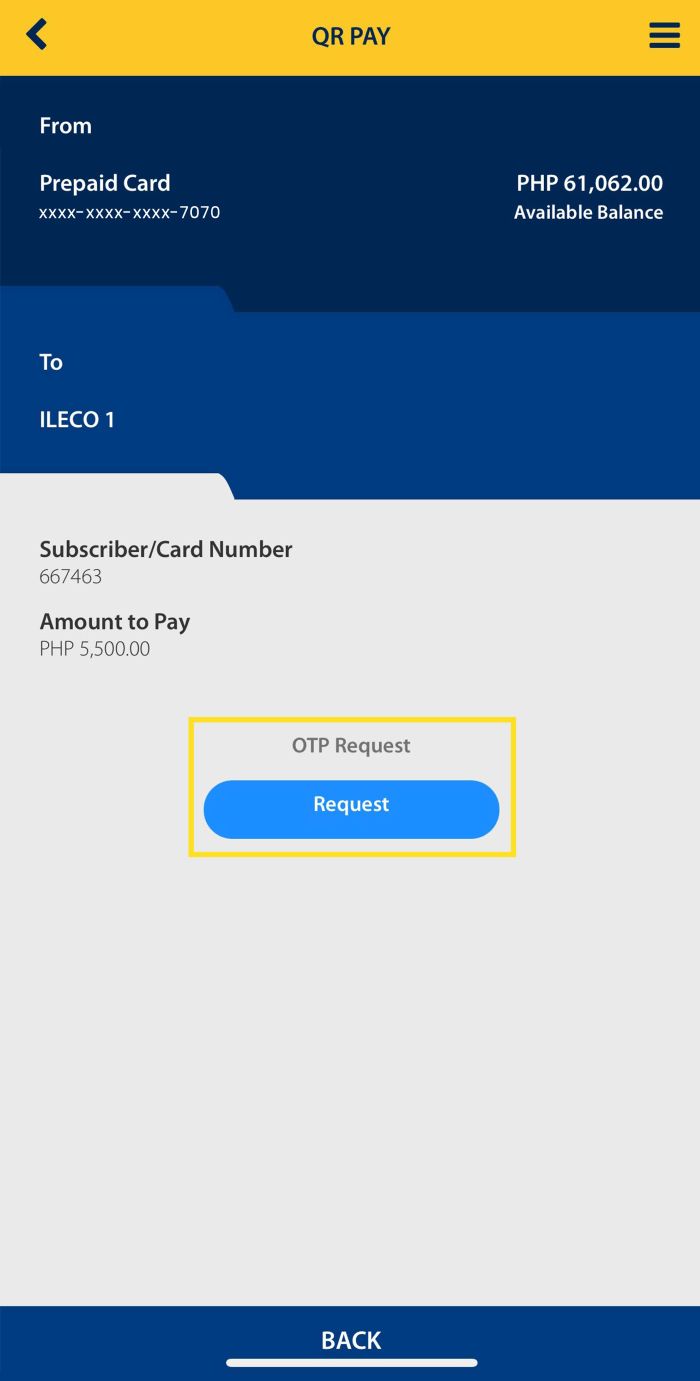
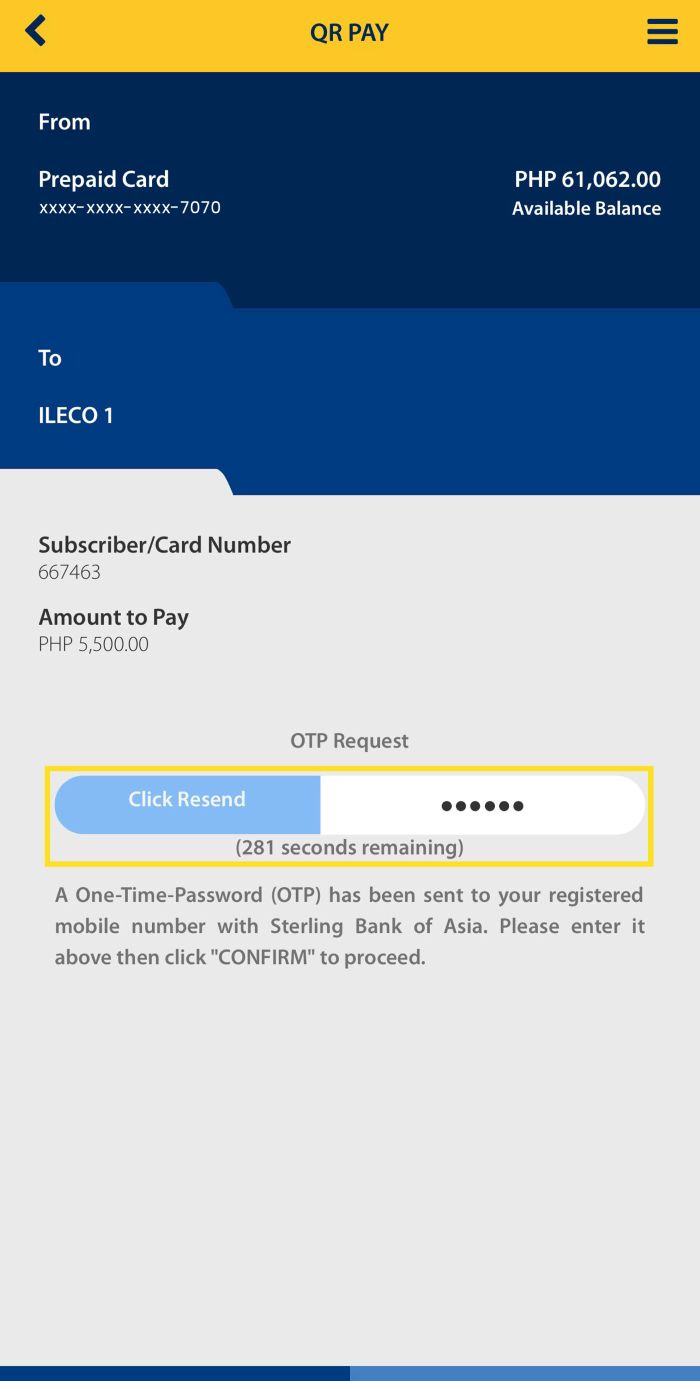
6. Check the payment details and request for a one-time password (OTP). Press "Request" to proceed.
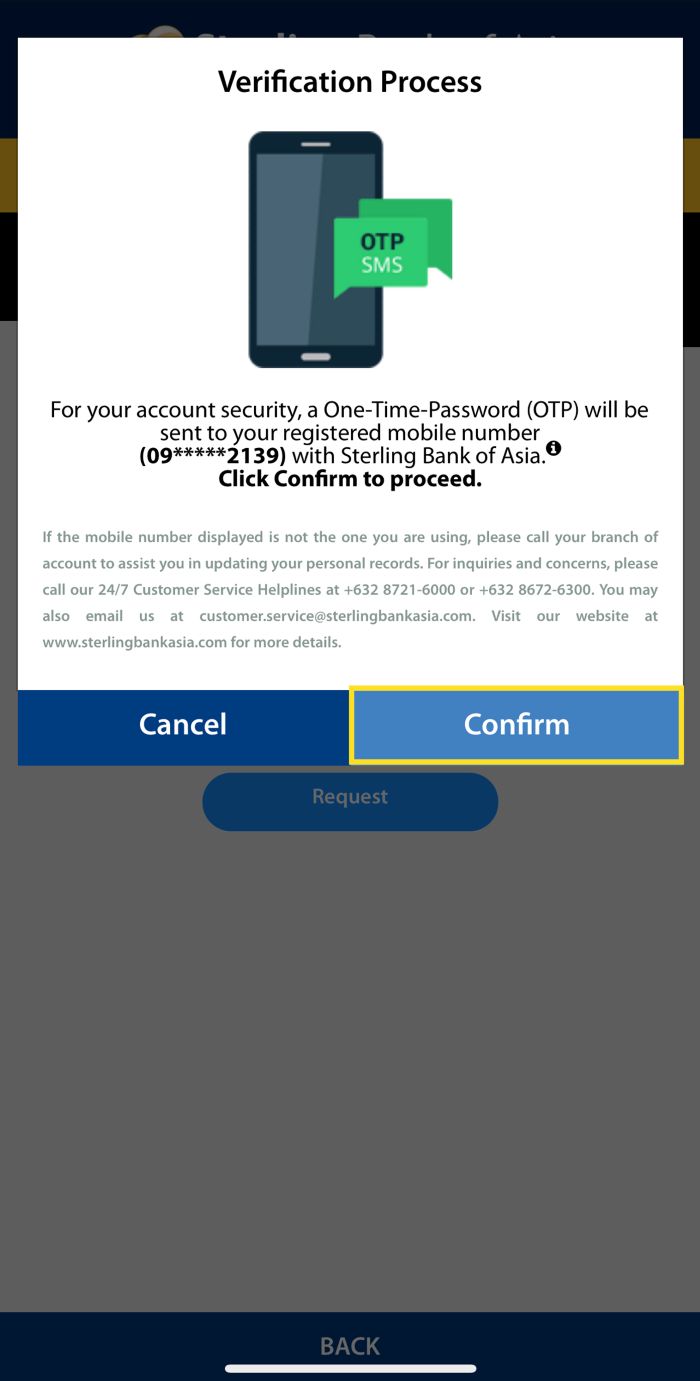
7. A box will appear to confirm your mobile number. If correct, click the "Confirm" button.
8. Enter the OTP you received and press Confirm.
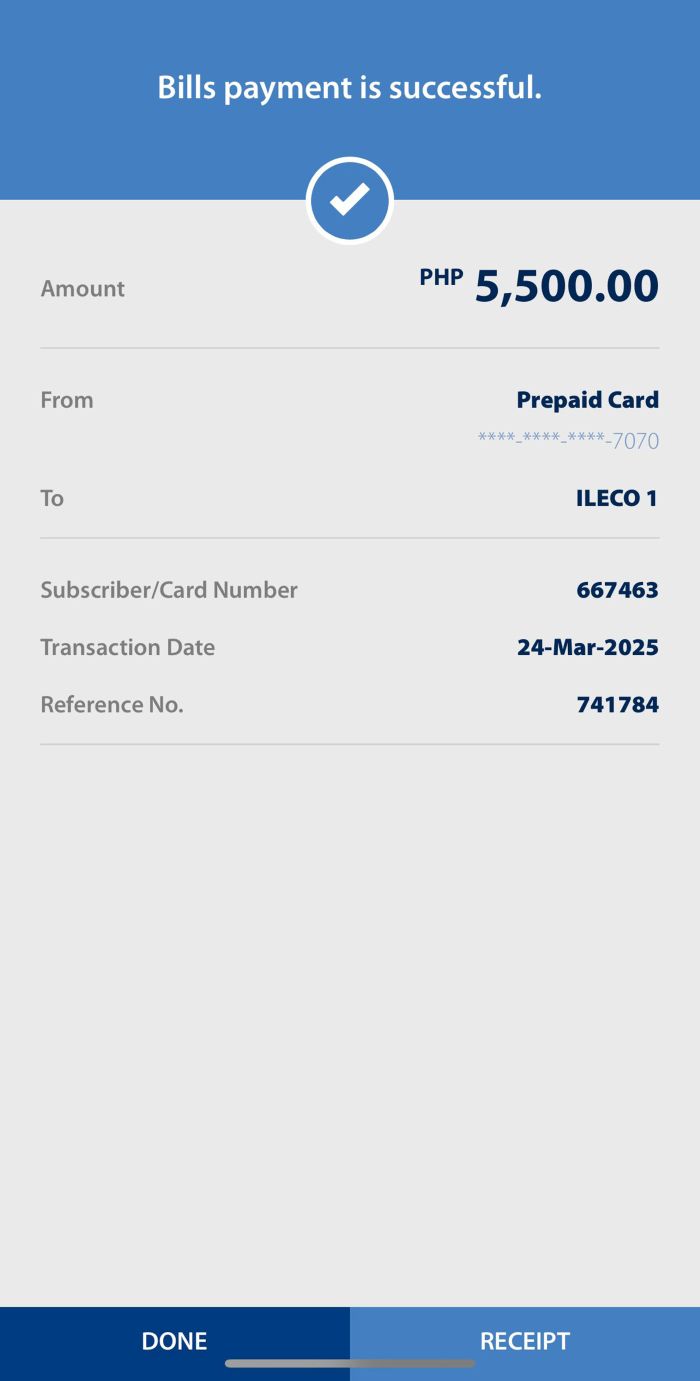
9. A confirmation page will appear for a successful bills payment transaction.
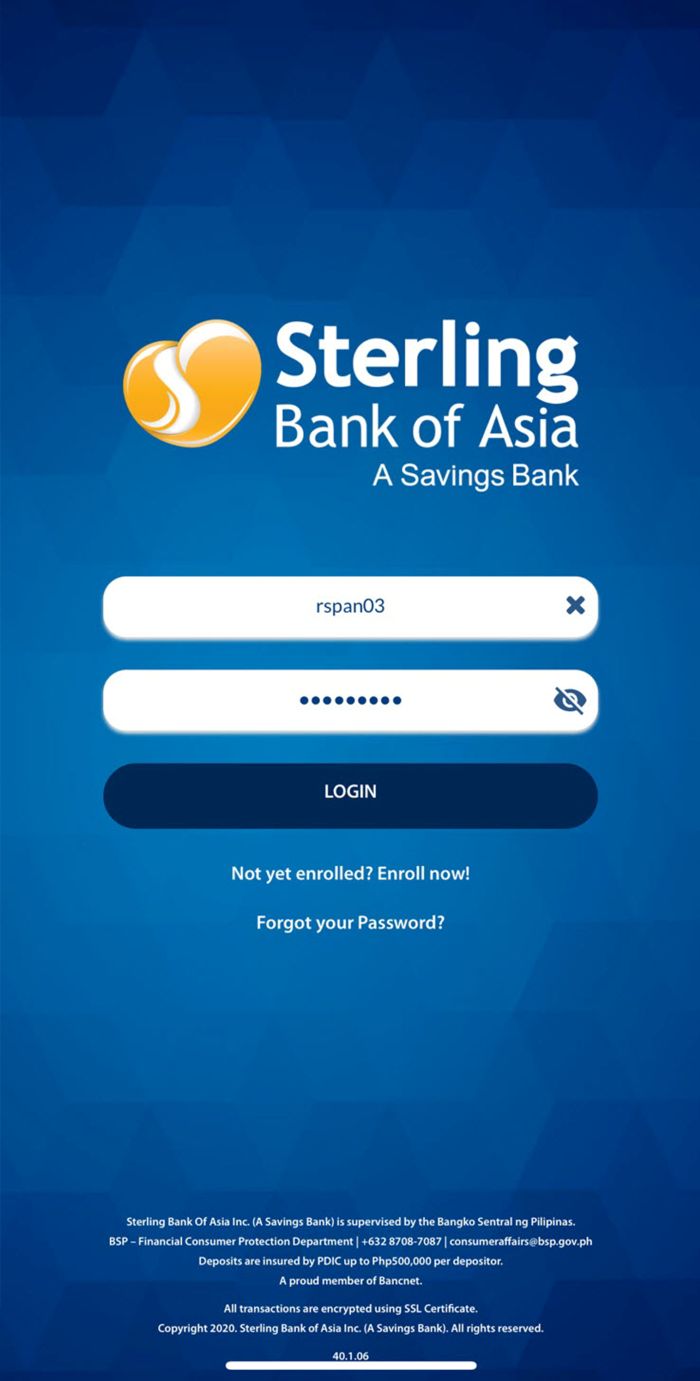
1. Login to your Sterling Bank Online Mobile Banking app. Not enrolled? Click here.
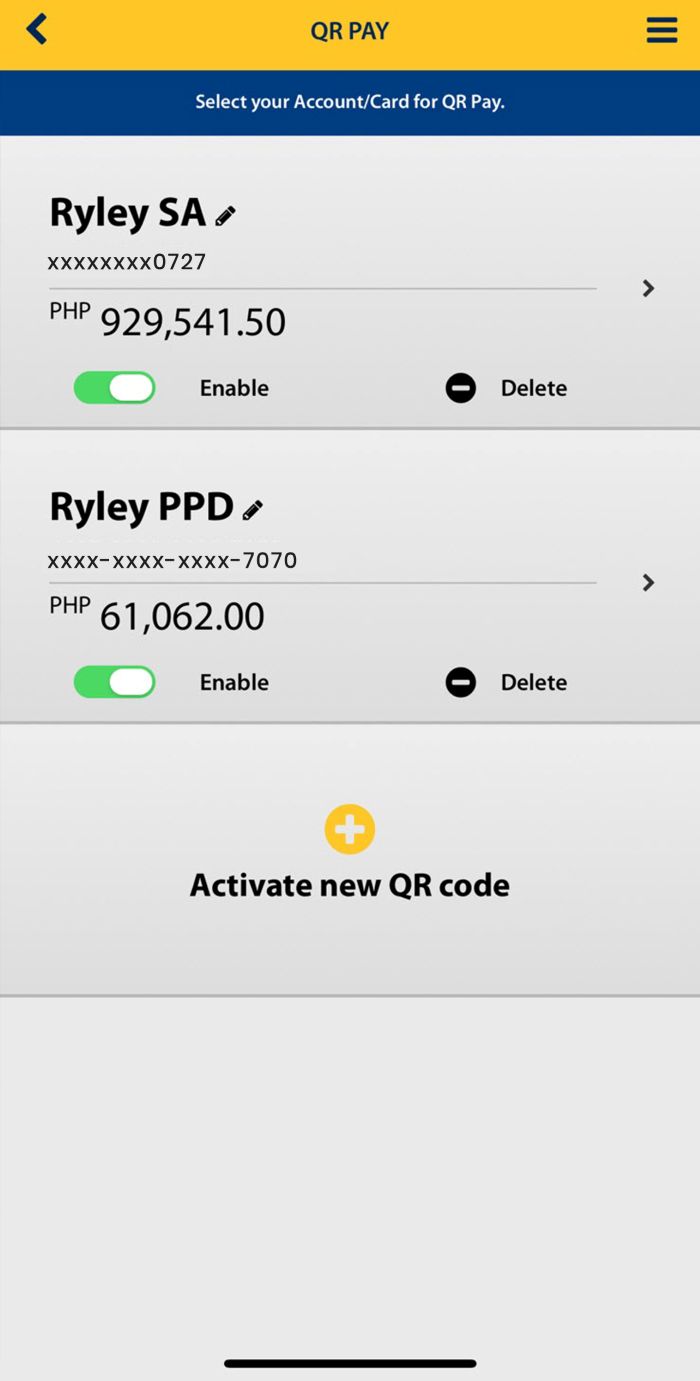
2. Select QR Pay from the side menu bar (☰).
3. Select the account or prepaid card you want to use for the payment transaction.
4. Select the QR Pay Option - Pay, then scan the QR Ph code of the merchant/store you want to pay.
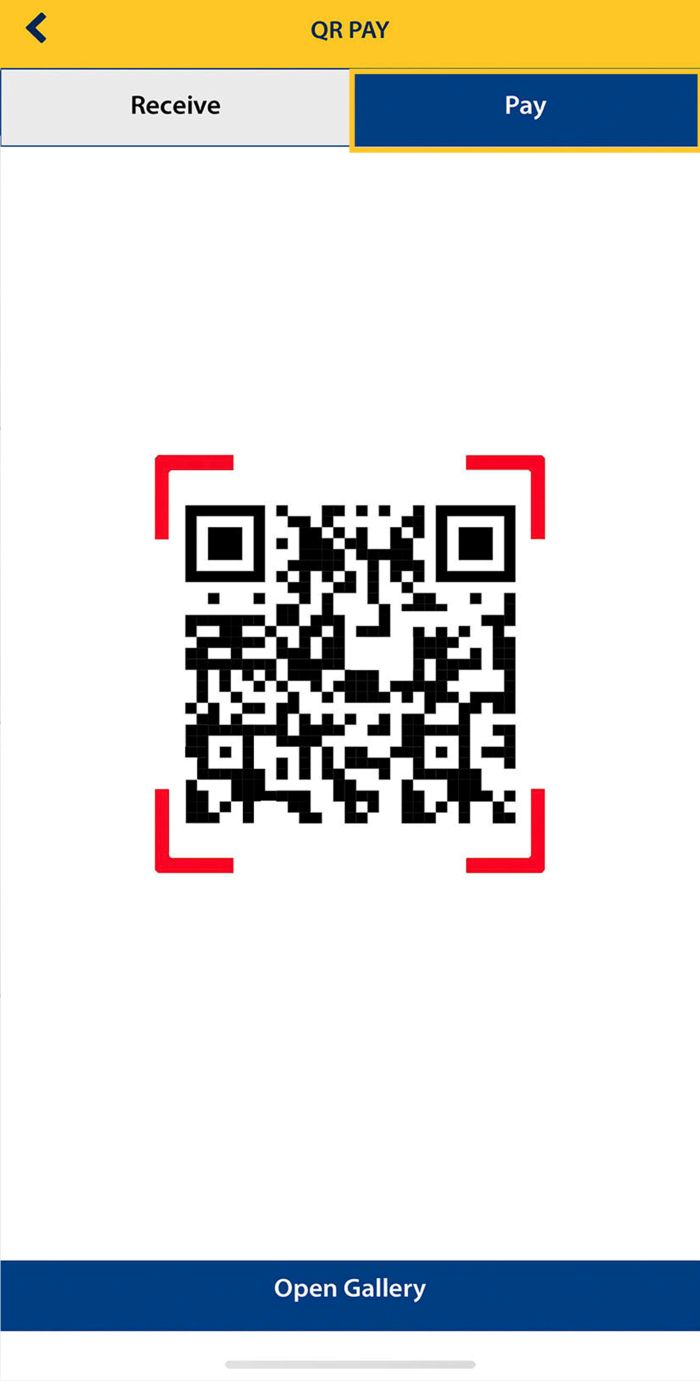
5. The amount to pay will be auto-populated. If no amount is displayed, input the amount to be paid manually. Press Confirm to proceed.
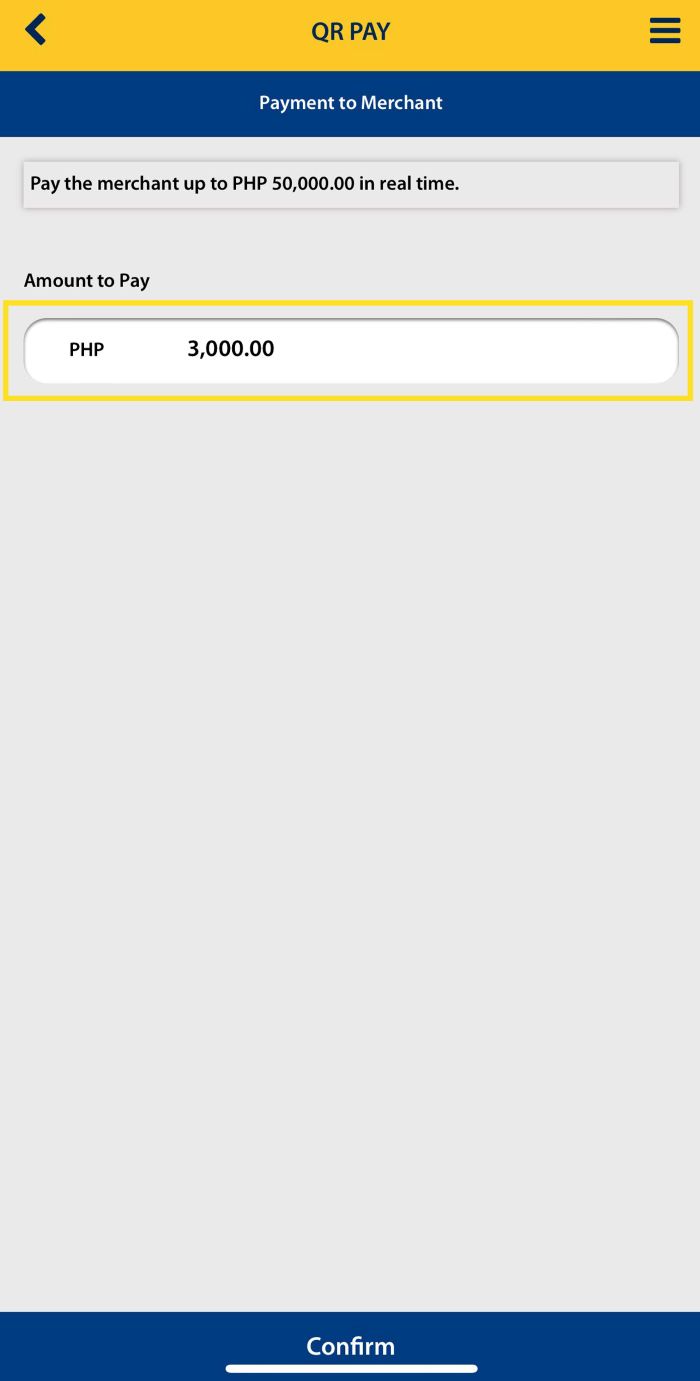
6. Check the payment details and request for a one-time password (OTP). Press "Request" to proceed.
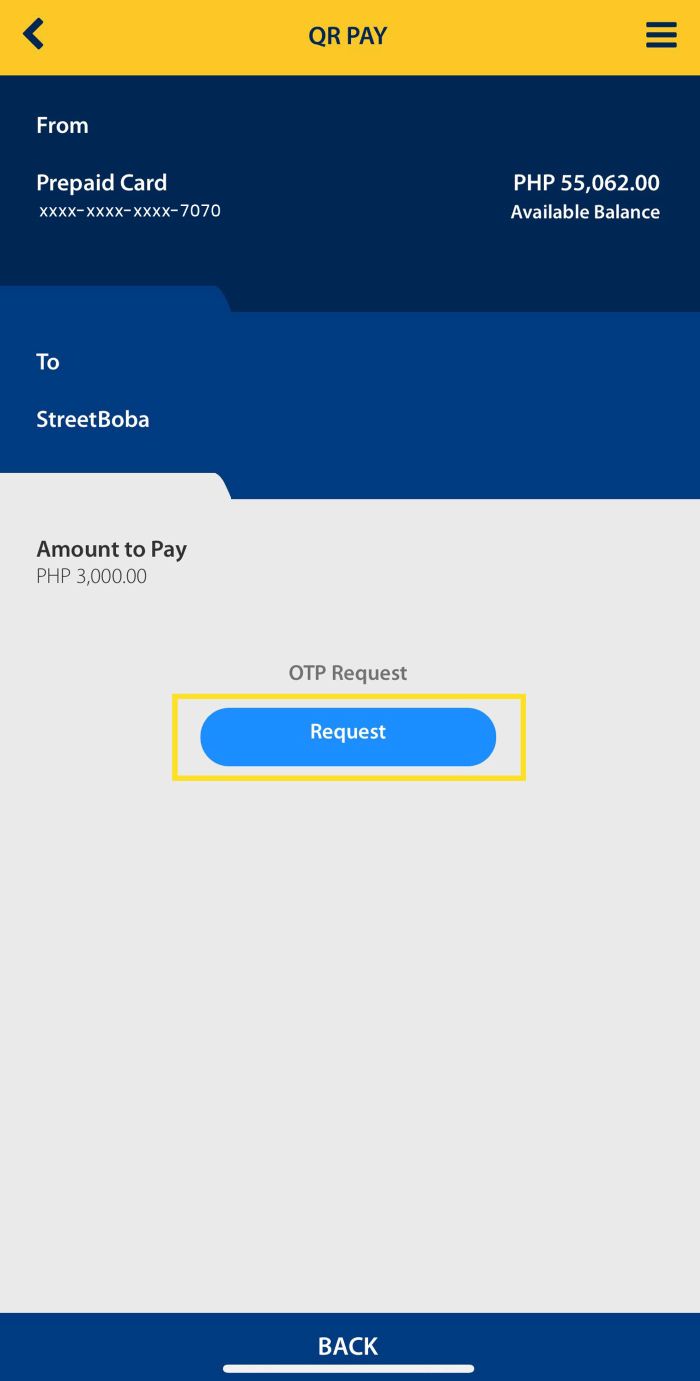
7. A box will appear to confirm your mobile number. If correct, click the "Confirm" button.
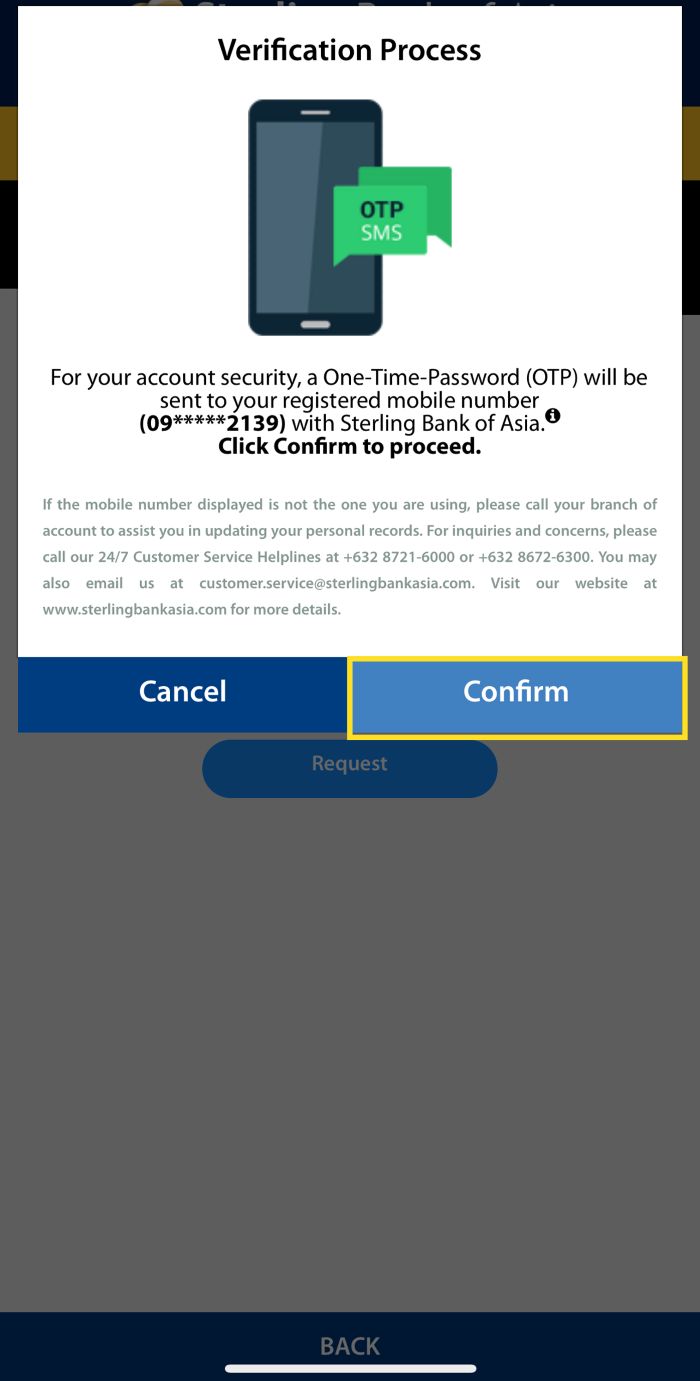
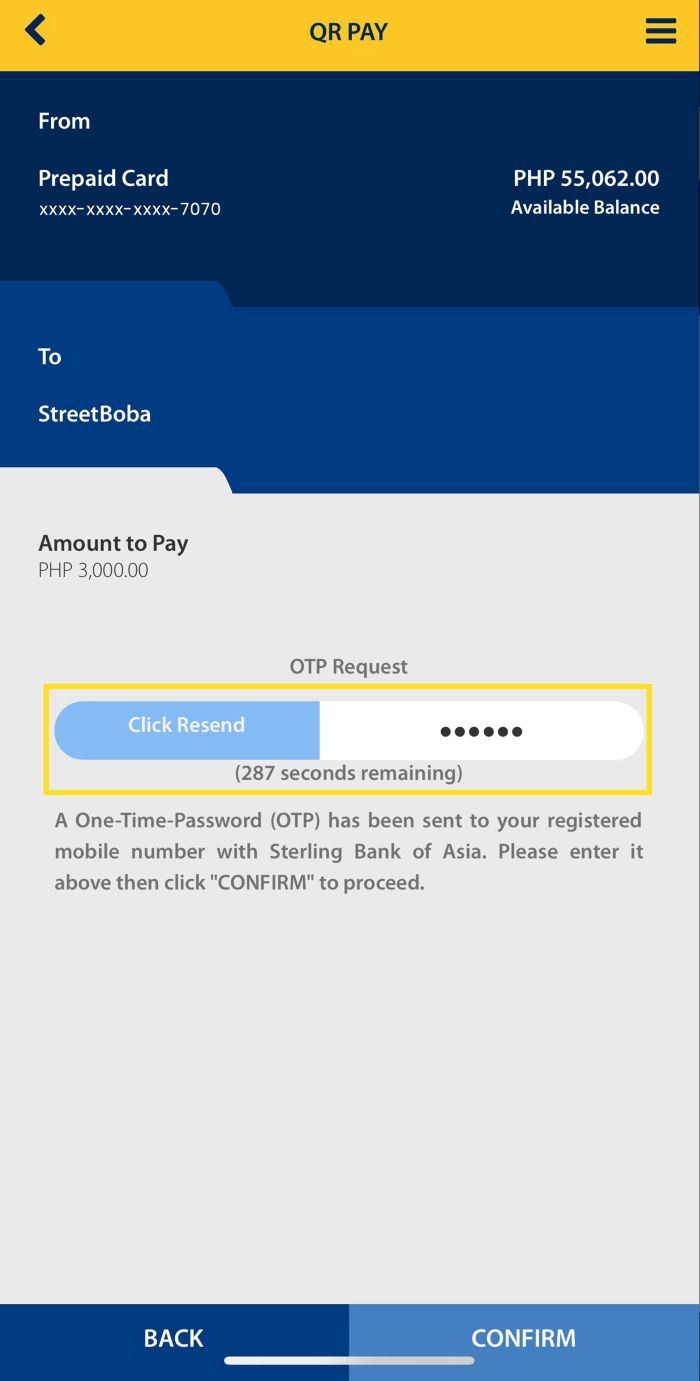
8. Enter the OTP you received and press Confirm.
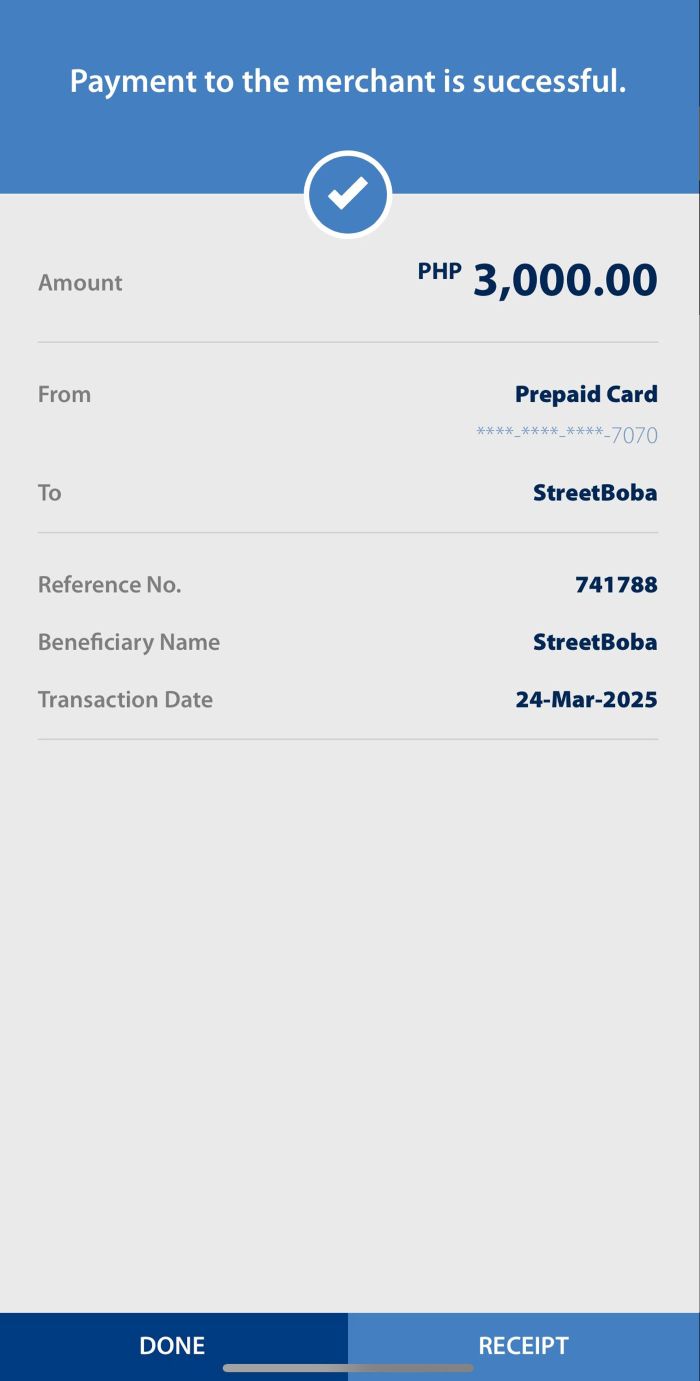
9. A confirmation page will appear for a successful payment transaction.
1. Login to Sterling Bank Online Mobile Banking app.
Not enrolled? Click here.
2. Select QR Pay from the side menu bar (☰).
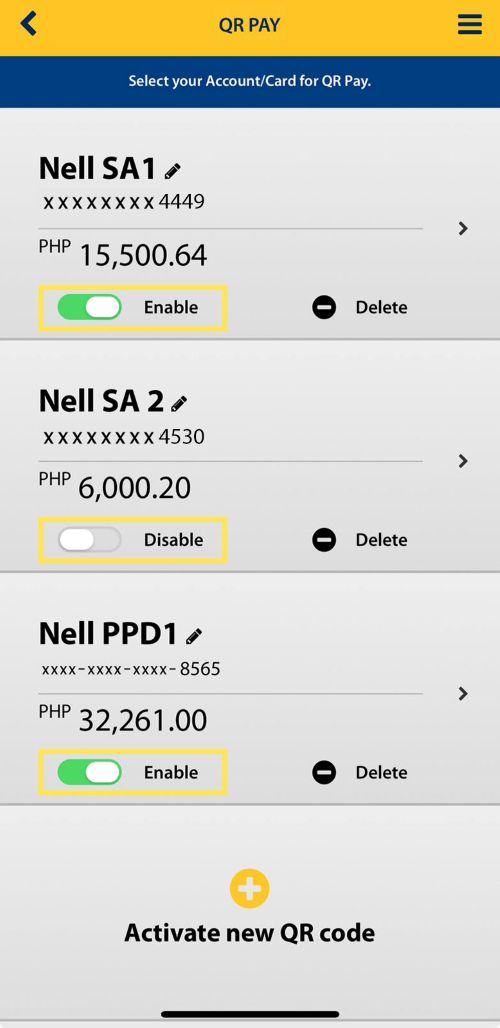
3. Slide the toggle button to enable/disable your QR code. Disabling your QR code means you can still receive1 funds from other local banks2 when you share your code. However, you cannot use it to send funds using QR Pay.
1You cannot receive funds from another Sterling Bank account using QR Pay. Instead, the sender may use Sterling Bank Online's Fund Transfer to 3rd Party SBA Account/to Own Account option.
2Receipt of funds from other local bank/s using your QR code is available for checking/savings account as the beneficiary account.
1. Login to Sterling Bank Online Mobile Banking app.
Not enrolled? Click here.
2. Select QR Pay from the side menu bar (☰).
3. Click “Delete” to remove/deactivate your QR code.

4. A message will appear to confirm that you have successfully deleted your QR code. Deleting your QR code means you can still receive1 funds from other local banks2 when you share your code.
1You cannot receive funds from another Sterling Bank account using QR Pay. Instead, the sender may use Sterling Bank Online's Fund Transfer to 3rd Party SBA Account/to Own Account option.
2Receipt of funds from other local bank/s using your QR code is available for checking/savings account as the beneficiary account.



With Sterling Bank Online, you can address your banking needs with ease, anytime, anywhere.
Manage your funds, pay bills and more through seamless and secure online banking right at your fingertips.


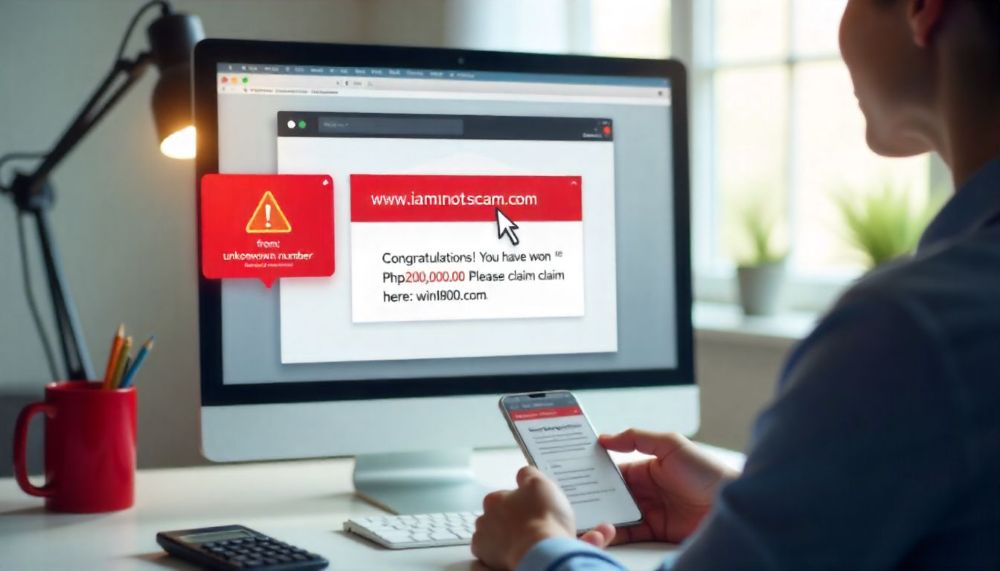

Avoid clicking links from emails and text messages.
Never share your username, password and OTP.
Always verify by contacting the bank's customer service helplines.


 Online Banking